The calendar
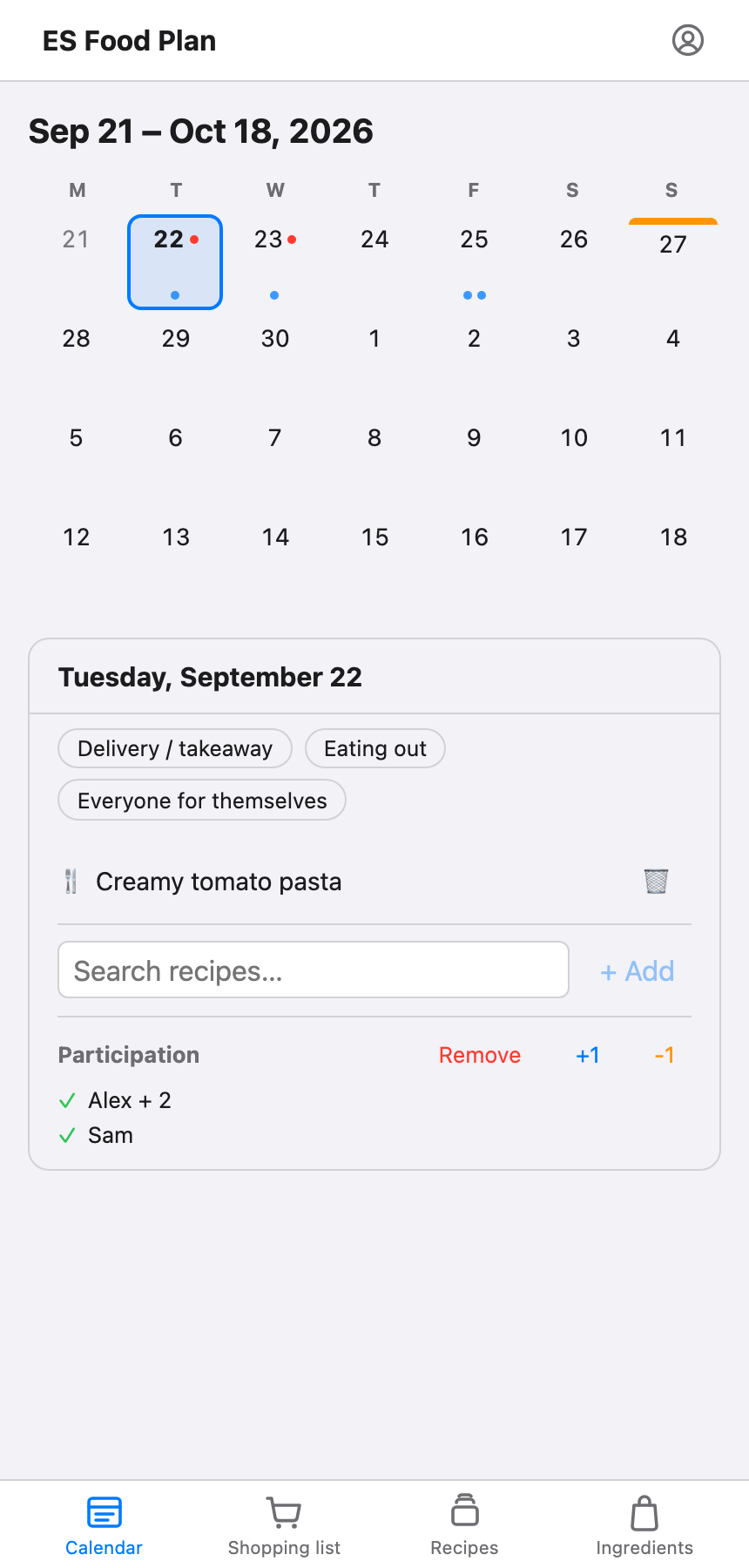
The calendar shows a rolling 4-week grid. Tap any day to plan it.
Planning a meal
Open a day and search for a recipe to add it. You can add more than one recipe to the same day (for example, a main and a side). Adding a recipe here is also what drives the shopping list — the ingredients for everything planned in the next 4 weeks get pulled together automatically (see Shopping list).
To remove a planned recipe from a day, open the day and remove it from the list.
Suggesting recipes to add
Once you’ve planned a couple of recipes, a Suggest toggle appears on the Recipes page. Turning it on reorders the list by how many ingredients each remaining recipe shares with what’s already on the calendar — the number next to each name is that overlap count, highest first, and recipes already planned drop out of the list.
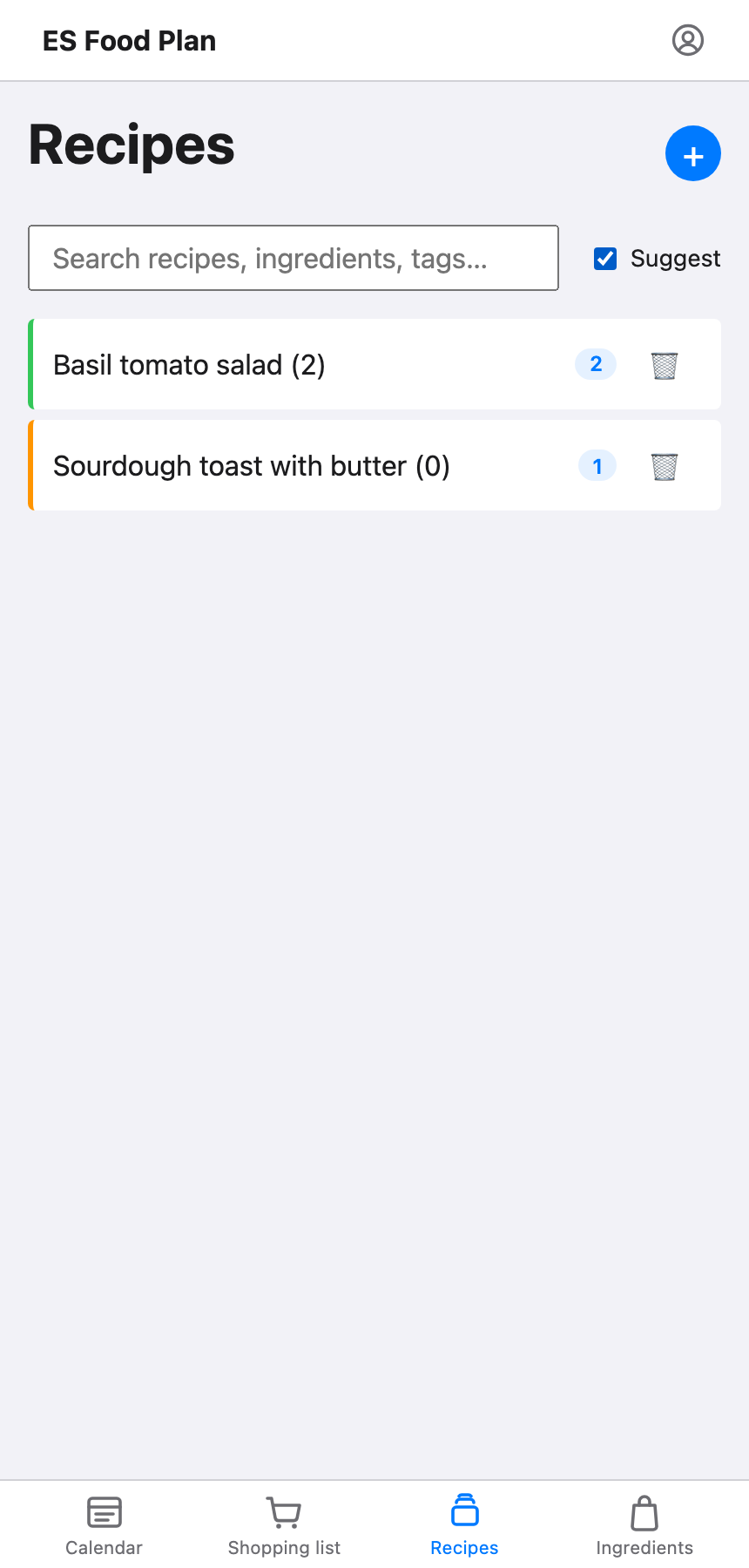
It’s a quick way to round out the week without buying a pile of ingredients you’ll only use once — picking a recipe with a higher overlap reuses something you’re already getting for another meal.
Participation
By default, everyone in the group is assumed to be eating on every day. If that’s not the case for a particular day, open it and adjust:
- Join / Remove — toggles whether you personally are eating that day.
- +1 / -1 — adds or removes extra participants beyond yourself (guests, for example), only available while you’re participating.
Each group member can set their own participation independently for the same day.
If a day’s participation has been changed away from the default for anyone, you’ll see a small red dot next to that day’s number on the calendar grid — a quick way to spot which days need a second look without opening each one.
Day markers
Day markers are colored labels you can put on a day to flag something outside the normal meal plan — eating out, everyone fending for themselves, or a meal arranged through a delivery provider, for example. They’re purely a visual tag: setting one doesn’t change participation or the shopping list.
Open a day and pick a marker from the row of colored chips to apply it, or pick it again to clear it. Any group member can apply or clear a day marker.
The available marker types (their names and colors) are managed from your profile by the group’s owner.